How do I use DTM for a Single Page App?

The question of how to use DTM on Single Page Apps (SPAs) is a VERY hot item right now. By Single Page App, I’m referring to a full user flow contained on a single web page, so as to provide the user a more seamless experience. Often, these pages act like typical web pages, but they don’t always change URLs or load new resources. Many common web development technologies, such as Angular.js, Ember.js, and AJAX use SPA principles.

Unfortunately, there isn’t a single great answer for how to deploy DTM- it depends on many things. I’ll work through some of the options and the limitations to be aware of.

Suppressing Page View Beacons

Whatever method you take for tracking page views in a SPA, keep in mind most SPAs do have one true “page view” when the DOM first loads. If you are going strictly with the DCR or EBR route, you may need to suppress the initial page view beacon the Analytics tool will want to set by default. Otherwise, in the example below where the developers are firing a direct call rule on all page views, you’d get TWO beacons on the first page and 1 on all subsequent pages.

Picture1

Data Layer Considerations

You’ll need to make sure that whatever the sources of your Data Elements are (CSS selector, javascript objects, cookies…) have the correct values BEFORE your rule is triggered. I have an example site showing one way you might do this for a data layer (though you’ll need to look in the source code), but ultimately it’s going to depend on your site.

Variable Persistence

One last consideration is that once your Analytics object exists (as in, the “s” in “s.pageName”), variables set on it will continue to exist unless specifically overwritten. In most cases, you’d overwrite s.pageName with a new value so it isn’t a problem, but something like s.eVar5 may be set on the first beacon in your SPA, and not desired on subsequent beacons. You can use s.clearVars() to “refresh” your “s” object, but you have to make sure it fires at the right time- for example, after the beacon on Page A, but before DTM starts mapping Data Elements to variables for the beacon on Page B. How you do this will depend on the overall deployment method you choose.

Deployment Methods

1) Direct Call Rules

Perhaps the most straight-forward approach is to have developers fire a Direct Call Rule, like _satellite.track(“page view”) on every thing YOU consider a page view, whether it’s a fresh new DOM or not.

Advantages: Disadvantages: 
  • You have ultimate control over when a page view in considered a page view.
  • If you need to clear out variables between beacons (for instance, you set s.eVar5 in the first beacon in the SPA, and don’t want it in the second beacon), Direct Call Rules don’t provide a great place to use something like s.clearsVars(). There are some potential work-arounds, but none are ideal.
  • Developers need to add more DTM-specific code (satellite.track) to your pages.
  • Direct Call Rules don’t allow for extra conditions (like “fire THIS logic on pageA, and THAT logic on pageB”) in the interface.
  • Direct Call Rules don’t “stack”- if multiple rules have conditions that are met, multiple rules will fire.

2) pushState or hashChange

Many SPA frameworks, like Angular, use a certain flag to let the browser know the user is viewing a new “page”.

pushState

DTM can listen for this flag in an Event Based Rule using a pushState or hashChange condition.

ADVANTAGES: DISADVANTAGES: 
  • No additional code is needed- most SPA frameworks are already firing something DTM can listen to
  • It’s an Event Based Rule, which allows you to fire clearVars(), and set extra conditions
  • Because you are listening for an event set by the framework, you have less control over timing. Updating a data layer BEFORE the “pushState” event is detected would be critical.
  • Event Based Rules don’t “stack”- if multiple rules have conditions that are met, multiple rules will fire.

3) Custom Event EBR

Another option, which feels a bit like a blend of the first two options, is to use a Custom Event-based Event Based Rule (and no, that’s not a typo- it’s an EBR based on the JavaScript Concept of a Custom Event). It’s possible Developers are already using this Custom Event concept for their own code and purposes, and DTM can just listen for it… or you can have developers set one specific to our DTM needs by using something like my digitalData.userAction hack.

ADVANTAGES: DISADVANTAGES: 
  • You have a little more control over timing
  • It’s an Event Based Rule, which allows you to fire clearVars(), and set extra conditions
  • May require more developer work- similar level of effort as DCRs
  • Event Based Rules don’t “stack”- if multiple rules have conditions that are met, multiple rules will fire.

 4) (NEW OPTION!) “dataelementchanged” Event Based Rule

Just in the last few weeks, a new option emerged as part of the AEM Context Hub integration. This allows DTM to listen for changes to certain data elements- for instance, you could have a rule fire whenever the “pageName” has changed. My friends at 33 sticks have a great blog post about this already for more info.

ADVANTAGES: DISADVANTAGES: 
  • You have a little more control over timing
  • It’s an Event Based Rule, which allows you to fire clearVars(), and set extra conditions
  • Requires careful consideration of when the data layer changes/loads
  • Event Based Rules don’t “stack”- if multiple rules have conditions that are met, multiple rules will fire.

Setting up an Event-based Rule that be fired directly like a Direct Call Rule

Update:
As proud as I am of this solution/workaround, it may be far less needed now that you can use the dataelementchanged  condition to fire an Event Based Rule. Instead of using custom events, you can just have DTM listen for when your pageName Data Element has changed. 

The current limitations

If developers want to fire a DTM rule directly from their code (say, they want to make sure a beacon fires only after their data layer is ready), typically they would fire a Direct Call Rule, with its very specific syntax: _satellite.track(“rule string here”). There are, however, some limitations to this method.

Direct Call Rules:

  • Don’t allow for multiple conditions (you can’t say “if _satellite.track(“cart add”) is fired AND the current page has “/products” in the URL“)
  • Don’t allow for multiple arguments (you can’t pass _satellite.track(“cart add”,”sku1″) to attach the added SKU to the rule)
  • Don’t allow for firing s.clearVars() before your rule sets up your analytics variables (to clear out variables from previous beacons on the same DOM).
  • Require very specific syntax- they MUST be “_satellite.track()”

And unfortunately, both Direct Call Rules and Event-based rules don’t “stack”- if a certain condition triggers multiple similar rules, each rule will fire its own beacon. This is different from Page Load Rules, where if multiple rules have conditions being met by the current page, they all wrap nicely into a single page view beacon.

An alternative

To get around some (but maybe not all) of these limitations, I’ve been playing with another possible option, where we use the Custom Event conditions of an Event Based Rule to accomplish nearly the same thing. After getting it set up, I can fire something like this:

digitalData.userAction("cart add","sku1")

…to fire an Event-Based Rule in place of a Direct Call Rule. There are a few things I need to do in DTM to make this digitalData.userAction work.

Set Up the Logic

First, I have to set up the logic in a Page Load Rule- set to fire on DOMReady (no need for it to be sooner)- that will merely hold the following as a Sequential Javascript Third Party Tag:

//make sure digitalData is defined to prevent errors
if(typeof digitalData=="undefined"){
  digitalData={}
}

//create fake DOM item to bind the event to
var fakeDiv = document.createElement('div');
fakeDiv.setAttribute('id', "dtmHolder");
fakeDiv.setAttribute('height','1');
fakeDiv.setAttribute('width','1');
fakeDiv.setAttribute('style','display:none');
document.body.appendChild(fakeDiv);

//define custom event
digitalData.userAction=function(n,details){

 document.getElementById("dtmHolder").addEventListener("dtmEvent", function(e) {
    console.info("Event is: ", e);
  })

  // First create the event
  var dtmEvent = new CustomEvent(n, {
    detail:""
  });

  jQuery("#dtmHolder").attr("detail",details)
  
  // Trigger it!
  document.getElementById("dtmHolder").dispatchEvent(dtmEvent); 
}

(Update: note that this code should not run before the DOM is created- it will create an error if you try to run it at page top because you are trying to append something to a body that doesn’t exist yet).
Now, whenever a developer fires digitalData.userAction(“string here), you can listen for that string as the Triggered Event Type in a Custom Event Event Based Rule. Obviously, you can alter the above code if you want a function named something other than digitalData.userAction.

Set Up an Event Based Rule

The rule will need to be bound to the CSs selector of the tiny fake div (“#dtmHolder”) we created for the custom event to bind to:

2016-04-20_12-38-12

You can create as many of these rules as you want, for whatever different strings you pass into digitalData.userAction()where the “triggered event type” reflects that string.

Pass Additional Info

If you want to pass a second argument ( e.g. digitalData.userAction(“cart add”,”sku1″)) I currently have that second argument  passing as a new attribute (“detail”) on the tiny invisible div, so you can access it off the “this” object directly in the rule:2016-04-20_12-41-52

You can give this a try at my ugly test site– open a developer console, turn on DTM debugging, and fire either digitalData.userAction(“cartAdd”,”sku123″) or digitalData.userAction(“pageView”) to see two example rules at work.

Run ClearVars

This opens the ability to run s.clearVars on s.t() beacons in cases where multiple beacons may be firing on a single DOM. (As a reminder, if you’re using the old DCR route, there are some hack-ish options for doing this- we call it daisy-chaining).

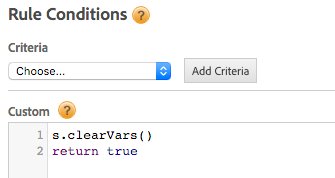
In an Event Based Rule, there IS a code block that runs before the Analytics tool, giving you a perfect opportunity to make sure you are starting with a ‘clean slate’ of variables: the Conditions Custom Code block. Just create a new Rule Condition with “custom” criteria, then put “s.clearVars()” in the code block, followed by “return true” (so that DTM doesn’t think some condition didn’t pass):

2016-04-20_12-52-49

You can also apply additional conditions, like “only fire this “cart add” rule on certain pages”, by adding more criteria under Rule Conditions.

Conclusion

I’m very open to suggestions and feedback on this- maybe we can crowdsource a better way, but for now, this seems to be a reasonable alternative to Direct Call Rules. Let me know what you think!

Referencing “this” in Event-Based Rules

Not many people know you can pull information out about the element that an Event-Based Rule fires on, without any custom code. Let’s say I want to fire a rule on a link that looks like this, and I want to capture the domain of the link that was clicked in eVar3:

<div partner="adobe">
     <a href="http://www.adobe.com" class="partnerExit" alt="go to our partner Adobe" target="_blank">This is an example link.</a>
</div>

I would set my rule up to correctly fire on that link (with something like “a.partnerExit”), then for eVar3 I would put %this.hostname%, where “this” refers to “this thing that the rule fired on”.

I don’t have to have to do any custom code, or have a data element set up (in fact, data elements are NOT particularly useful at pulling out information specific to the element that fired an event-based rule.)

Putting this in the interface…

Would let me access…

Which would yield this…

%this.hostname% The domain of the link that was clicked www.adobe.com
%this.href% The full URL of the link that was clicked http://www.adobe.com/
%this.src% The source of the element that was clicked (works for images, not links) (Not applicable here.)
%this.alt% The “alt” value of the element that was clicked go to our partner Adobe.
%this.@text% The internal text of the element that was clicked This is an example link.
%this.@cleanText% The internal text of the element that was clicked, trimmed to remove extra white space This is an example link.
%this.className% The class of the element that was clicked (less handy in reports, but very handy for DTM troubleshooting) partnerLink

For more advanced “DOM-scraping” you may need to take to the custom code. I find jQuery often simplifies things greatly for this. For instance, in the above example, if I wanted to get the ID not of the anchor tag, but of the <div> that HOLDS the anchor tag, I could do this in the custom code:

Note that I remembered to also add it into s.linkTrackVars, since this is an s.tl beacon (DTM automatically creates s.linkTrackVars for any variables you configure directly in the interface, but can’t know which variables you are adding to the custom code section, so you must be sure to add them to linkTrackVars or linkTrackEvents yourself, or the s.tl() beacon will ignore those variables).

How to get a global “s” object in DTM

At this point in time, by default, DTM creates your analytics object (usually an “s”, as in “s.pageName”) with a local scope. This means it should be able to be referenced from any custom code blocks within DTM that are tied to your analytics tool. However, it would NOT be accessible from code on the page (or a developer console) or even non-analytics code blocks in DTM (like Third Party Tags). This can cause some pretty big problems if you aren’t aware.

sUndefined


To get around this, you need to define your own s object within your library. This does mean you can’t let DTM manage your library, but the change you need to make is pretty minor. You need a “Custom” configuration, and you’ll need to “Set report suites using custom code below” (since you’re essentially going to be overwriting the “s” object that DTM created, where it set your report suites for you.

configureScode


When you open the editor, add this code to the top:

s = new AppMeasurement();
if(_satellite.settings.isStaging==true)
{s.account="myDevSuite"}else{s.account="myProdSuite"}

Make sure to replace the “myDevSuite” and “myProdSuite” with the correct report suites- these should match what you have in the interface. This uses _satellite.settings.isStaging to detect the current library and set the appropriate s_code.


With that in place, you should be able to access the “s” object from anywhere in DTM or on your page.

UPDATE: Because of a current quirk in DTM where it looks for the H code version of your s.account, I recommend also setting this line, below the ones above:

var s_account=s.account

This should prevent any report suite confusion on s.tl beacons from Direct Call Rules and Event Based Rules.

Setting the Products String in DTM

Enough people have asked for an example of a products string that I decided to post my example page on my server.

On the example page, you can see:

  • How to build a W3C-standard data layer object for a cart with multiple items
  • How to create a simple s.products string
  • How to create more elaborate s.products strings, including merchandising eVars.
  • What the final beacon looks like.

I hope someone out there finds it helpful!