UPDATE: The wonderful devs behind Adobe Launch have seen this and may be willing to build it in natively to the product. Please go upvote the idea in the Launch Forums!
As discussed previously on this blog, Direct Call Rules have gained some new abilities so you can send additional info with the _satellite.track method, but unfortunately, this can be difficult to troubleshoot. When you enabled _satellite.setDebug (which should really probably just be called “logging” since it isn’t exactly debugging) in DTM or Launch, your console will show you logs about which rules fire. For instance, if I run this JavaScript from our earlier blog post:
_satellite.track("add to cart",{name:"wug",price:"12.99",color:"red"})
I see this in my console:
Or, if I fire a DCR that doesn’t exist, it will tell me there is no match:
Unfortunately, this doesn’t tell me much about the parameters that were passed (especially if I haven’t yet set up a rule in Launch), and relies on having _satellite debugging turned on.
Improved Logging for Direct Call Rules
If you want to see what extra parameters are passed, try running this in your console before the DCR fires:
var satelliteTrackPlaceholder=_satellite.track //hold on to the original .track function
_satellite.track=function(name,details){ //rewrite it so you can make it extra special
   if(details){
      console.log("DCR NAME: '"+name+"' fired with the following additional params: ", details)
   }else{
      console.log("DCR NAME: '"+name+"' fired without any additional params")
   }
   //console.log("Data layer at this time:" + JSON.stringify(digitalData))
   satelliteTrackPlaceholder(name,details) //fire the original .track functionality
}
Now, if I fire my “add to cart” DCR, I can see that additional info, and Launch is still able to run the Direct Call Rule:
You may notice this commented-out line:
//console.log("Data layer at this time:" + JSON.stringify(digitalData))
This is for if you want to see the contents of your data layer at the time the DCR fires- you can uncomment it if that’d also be helpful to you. I find “stringifying” a JavaScript object in console logs is a good way of seeing the content of that object at that point in time- otherwise, sometimes what you see in the console reflects changes to that object over time.
Improved Logging for “Custom Event”-Based Rules
If you’re using “Custom Event” rules in DTM or Launch, you may have had some of the same debugging/logging frustrations. Logs from _satellite.setDebug will tell you a rule fired, but not what extra details were attached, and it really only tells you anything if you already have a rule set up in Launch.
For example, let’s say I have a link on my site for adding to cart:
My developers have attached a custom event to this link:
var addToCartButton = document.getElementById("cartAddButton");
addToCartButton.addEventListener("click", fireMyEvent, false);
function fireMyEvent(e) {
   e.preventDefault();
   var myCustomEvent = new CustomEvent("cartAdd", { detail: { name:"wug", price:"12.99", color:"red" }, bubbles: true, cancelable: true });
   e.currentTarget.dispatchEvent(myCustomEvent)
}
And I’ve set up a rule in Launch to listen to it:
With my rule and _satellite.setDebug in place, I see this in my console when I click that link:
But if this debugging doesn’t show up (for instance, if my rule doesn’t work for some reason), or if I don’t know what details the developers put on the custom event for me to work with, then I can put this script into my console:
var elem=document.getElementById("cartAddButton")
elem.addEventListener('cartAdd', function (e) {
  console.log("'CUSTOM EVENT 'cartAdd' fired with these details:",e.detail)
}, false);
Note, you do need to know what element the custom event fires on (an element with the ID of “cartAddButton”), and the name of the event (“cartAdd” in this case)- you can’t be as generic as you can with the Direct Call Rules.
With that in place, it will show me this in my console:
Note, any rule set up in Launch for that custom event will still fire, but now I can also see those additional details, so I could now know I can reference the product color in my rule by referencing “event.detail.color” in my Launch rule:
Other tips
Either of these snippets will, of course, only last until the DOM changes (like if you navigate to a new page or refresh the page). You might consider adding them as code within Launch, particularly if you need them to fire on things that happen early in the page load, before you have a chance to put code into the console, but I’d say that should only be a temporary measure- I would not deploy that to a production library.
What other tricks do you use to troubleshoot Direct Call Rules and Custom Events?
As Page Performance (rightfully) gets more and more attention, I’ve been hearing more and more questions about the Performance Timing plugin from Adobe consulting. Adobe does have public documentation for this plugin, but I think it deserves a little more explanation, as well as some discussions of gotchas, and potential enhancements.
How It Works
Adobe’s Page Performance plugin is actually just piggybacking on built-in functionality: your browser already determined at what time your content starting loading and at what time is stopped loading. You can see this in a JavaScript Console by looking at performance.timing:
This shows a timestamp (in milliseconds since Jan 1, 1970, which the internet considers the beginning of time) for when the current page hit certain loading milestones.
Adobe’s plugin does look at that performance timing data, compares a bunch of the different milestone timestamps versus each other, then does some math to put it into nice, easy-to-read seconds. For instance, my total load time would be the number of seconds between navigationStart and loadEventEnd:
Additionally, if I choose to, I can have the plugin grab information from the built-into-the-browser performance.getEntries(), put it into session storage (not a cookie because it can be a long list), and put it into the variable of your choice (usually a listVar or list prop) on the next page. These entries show you for EACH FILE on the page, how long they took to load.
Unfortunately, if I’m sending my analytics page view beacon while the page is still loading, then the browser can’t tell me when “domComplete” happened…. because it hasn’t happened yet! So the plugin writes all these values to a cookie, then on your NEXT beacon, reads them back and puts them into numeric events that you define when you set the plugin up. This means you won’t get a value on the first page of the visit, and the values for the last page of the visit won’t ever be sent in. It also means you don’t want to break these metrics down by page, but rather by PREVIOUS page- so often this plugin is rolled out alongside the getPreviousValue plugin. This also means that the plugin is not going to return data for single-page visits or for the last page of visits (it may collect the data but doesn’t have a second beacon to send the data in on). for this reason, your Performance Timing Instances metric may look significantly different from your Page Views metric.
What It Captures
Out of the box, the plugin captures all of the following into events:
Redirect Timing (seconds from navigationStart to fetchStart- should be zero if there was no redirect)
App Cache Timing (seconds from fetchStart to domainLookupStart)
DNS Timing (seconds from domainLookupStart to domainLookupEnd)
TCP Timing (seconds from connectStart to connectEnd)
Request Timing (seconds from connectEnd to responseStart)
Response Timing (seconds from responseStart to responseEnd )
Processing Timing (seconds from domLoading to loadEventStart)
onLoad Timing (seconds from loadEventStart to loadEventEnd)
Total Page Load Time (seconds from navigationStart to loadEventEnd )
Instances (for calculated metric- otherwise you only really get the aggregated seconds, which is fairly meaningless if your traffic fluctuates)
Which gets you reporting that looks like this:
…Which, to be honest, isn’t that useful, because it shows the aggregated number of seconds. The fact that our product page took 1.3 million seconds in redirect timing in this reporting period means nothing without some context. That’s why that last metric, “instances”, exists: you can turn any of the first 9 metrics into a calculated metric that shows you the AVERAGE number of seconds in each phase of the page load:
This gives me a much more useful report, so I can start seeing which pages take the longest to load:
As you can see, the calculated metric can use either the “Time” format or the “Decimal” format, depending on your preference.
Performance Entries
As mentioned previously, the plugin can also capture your performance entries (that is, a list of ALL of the resources a page loaded, like images and JS files) and put them into a listVar or prop of your choice. This returns a list, delimited by “!”, where each value has a format that includes:
The name of the resource (ignoring query params)!at what second in the page load this resource started loading!how long it took for that resource to finish loading!resource type (img, script, etc).
For example, on my blog, I might see it return something like this:
From this, I can see every file that is used on my page and how long it took to load (and yes, it is telling me that the last resource to load was my analytics beacon, which started .7 seconds into my page loading, and took .2 seconds to complete). This is a LOT of information, and at bare minimum, it can make my analytics beacons very long (you can pretty much accept that most of your beacons are going to become POST requests rather than GET requests), but it can be useful to see if certain files are consistently slowing down your page load times.
An Enhancement: Time to Interaction
Unfortunately, the plugin most commonly used by folks omits one performance timing metric that many folks believe is the most critical: Time to DomInteractive. As this helpful site states:
Page Load Time is the time in which it takes to download the entire content of a web page and to stabilize.
Time to Interactive is the amount of time in which it takes for the content on your page to become functional and ready for the user to interact with once the content has stabilized.
In other words, Page Load Time might include the time it takes for a lot of background activity to go on, which may not necessarily stop the user from interacting with the site. If your page performance goal is for the best user experience, then Time To Interaction should be a key metric in measuring that. So, how do we track that? It already exists in that performance.timing object, so I tweaked the existing plugin code to include it. I can then create a calculated metric off of that (Time to Interactive/Page Performance Instances) and you can see it tells a very different story for this site than Total Page Load Time did:
9.49 seconds DOES sound like a pretty awful experience, but all three of these top pages had a much lower (and much more consistent) number of seconds before the user could start interacting with the page.
Basic Implementation
There are three parts to setting up the code for this plugin: before doPlugins (configuration), during doPlugins (execution), and after doPlugins (definition).
Configuration
First, before doPlugins, you need to configure your usage by setting s.pte and s.ptc:
s.pte = 'event1,event2,event3,event4,event5,event6,event7,event8,event9,event10,event11'
s.ptc = false; //this should always be set to false for when your library first loads
In my above example, here is what each event will set:
event1= Redirect Timing (seconds from navigationStart to fetchStart- should be zero if there was no redirect)- set as Numeric Event
event2= App Cache Timing (seconds from fetchStart to domainLookupStart)- set as Numeric Event
event3= DNS Timing (seconds from domainLookupStart to domainLookupEnd)- set as Numeric Event
event4= TCP Timing (seconds from connectStart to connectEnd)- set as Numeric Event
event5= Request Timing (seconds from connectEnd to responseStart)- set as Numeric Event
event6= Response Timing (seconds from responseStart to responseEnd )- set as Numeric Event
event7= Processing Timing (seconds from domLoading to loadEventStart)- set as Numeric Event
event8= onLoad Timing (seconds from loadEventStart to loadEventEnd)- set as Numeric Event
event9= Total Page Load Time (seconds from navigationStart to loadEventEnd )- set as Numeric Event
event10= Total Time to Interaction (seconds from connectStart to timeToInteraction)- set as Numeric Event. NOTE- THIS IS ONLY ON MY VERSION OF THE PLUGIN, OTHERWISE SKIP TO INSTANCES
event11= Instances – set as Counter Event
I’d also need to make sure those events are enabled in my Report Suite with the correct settings (everything should be a Numeric Event, with the exception of instances, which should be a Counter Event).
Execution
Within doPlugins, I need to just run the s.performanceTiming function. If I don’t want to capture performance entries (which is reasonable- not everyone has the listVars to spare, and it can return a VERY long value that can be difficult to get value out of), then I fire the function without any arguments:
s.performanceTiming()
If I DO want those performance entries, then I add the name of that variable as an argument:
s.performanceTiming("list3")
Also, you’re going to want to be capturing Previous Page Name into a prop or eVar if you aren’t already:
s.prop1=s.getPreviousValue(s.pageName,'gpv_pn');
(If you are already capturing Previous Page Name into a variable, you don’t need to capture it separately just for this plugin- you just need to be capturing it once somewhere).
Definition
Finally, where I have all of my plugin code, I need to add the plugin definitions. You can get Adobe’s version from their documentation, or if you want it with Time To Interactive, you can use my version:
/* Plugin: Performance Timing Tracking - 0.11 BETA - with JKunz's changes for Time To Interaction.
Can you guess which line I changed ;)?*/
s.performanceTiming=new Function("v",""
+"var s=this;if(v)s.ptv=v;if(typeof performance!='undefined'){if(perf"
+"ormance.timing.loadEventEnd==0){s.pi=setInterval(function(){s.perfo"
+"rmanceWrite()},250);}if(!s.ptc||s.linkType=='e'){s.performanceRead("
+");}else{s.rfe();s[s.ptv]='';}}");
s.performanceWrite=new Function("",""
+"var s=this;if(performance.timing.loadEventEnd>0)clearInterval(s.pi)"
+";try{if(s.c_r('s_ptc')==''&&performance.timing.loadEventEnd>0){try{"
+"var pt=performance.timing;var pta='';pta=s.performanceCheck(pt.fetc"
+"hStart,pt.navigationStart);pta+='^^'+s.performanceCheck(pt.domainLo"
+"okupStart,pt.fetchStart);pta+='^^'+s.performanceCheck(pt.domainLook"
+"upEnd,pt.domainLookupStart);pta+='^^'+s.performanceCheck(pt.connect"
+"End,pt.connectStart);pta+='^^'+s.performanceCheck(pt.responseStart,"
+"pt.connectEnd);pta+='^^'+s.performanceCheck(pt.responseEnd,pt.respo"
+"nseStart);pta+='^^'+s.performanceCheck(pt.loadEventStart,pt.domLoad"
+"ing);pta+='^^'+s.performanceCheck(pt.loadEventEnd,pt.loadEventStart"
+");pta+='^^'+s.performanceCheck(pt.loadEventEnd,pt.navigationStart);pta+='^^'+s.performanceCheck(pt.domInteractive, pt.connectStart);"
+"s.c_w('s_ptc',pta);if(sessionStorage&&navigator.cookieEnabled&&s.pt"
+"v!='undefined'){var pe=performance.getEntries();var tempPe='';for(v"
+"ar i=0;i<pe.length;i++){tempPe+='!';tempPe+=pe[i].name.indexOf('?')"
+">-1?pe[i].name.split('?')[0]:pe[i].name;tempPe+='|'+(Math.round(pe["
+"i].startTime)/1000).toFixed(1)+'|'+(Math.round(pe[i].duration)/1000"
+").toFixed(1)+'|'+pe[i].initiatorType;}sessionStorage.setItem('s_pec"
+"',tempPe);}}catch(err){return;}}}catch(err){return;}");
s.performanceCheck=new Function("a","b",""
+"if(a>=0&&b>=0){if((a-b)<60000&&((a-b)>=0)){return((a-b)/1000).toFix"
+"ed(2);}else{return 600;}}");
s.performanceRead=new Function("",""
+"var s=this;if(performance.timing.loadEventEnd>0)clearInterval(s.pi)"
+";var cv=s.c_r('s_ptc');if(s.pte){var ela=s.pte.split(',');}if(cv!='"
+"'){var cva=s.split(cv,'^^');if(cva[1]!=''){for(var x=0;x<(ela.lengt"
+"h-1);x++){s.events=s.apl(s.events,ela[x]+'='+cva[x],',',2);}}s.even"
+"ts=s.apl(s.events,ela[ela.length-1],',',2);}s.linkTrackEvents=s.apl"
+"(s.linkTrackEvents,s.pte,',',2);s.c_w('s_ptc','',0);if(sessionStora"
+"ge&&navigator.cookieEnabled&&s.ptv!='undefined'){s[s.ptv]=sessionSt"
+"orage.getItem('s_pec');sessionStorage.setItem('s_pec','',0);}else{s"
+"[s.ptv]='sessionStorage Unavailable';}s.ptc=true;");
/* Remove from Events 0.1 - Performance Specific,
removes all performance events from s.events once being tracked. */
s.rfe=new Function("",""
+"var s=this;var ea=s.split(s.events,',');var pta=s.split(s.pte,',');"
+"try{for(x in pta){s.events=s.rfl(s.events,pta[x]);s.contextData['ev"
+"ents']=s.events;}}catch(e){return;}");
/* Plugin Utility - RFL (remove from list) 1.0*/
s.rfl=new Function("l","v","d1","d2","ku",""
+"var s=this,R=new Array(),C='',d1=!d1?',':d1,d2=!d2?',':d2,ku=!ku?0:"
+"1;if(!l)return'';L=l.split(d1);for(i=0;i<L.length;i++){if(L[i].inde"
+"xOf(':')>-1){C=L[i].split(':');C[1]=C[0]+':'+C[1];L[i]=C[0];}if(L[i"
+"].indexOf('=')>-1){C=L[i].split('=');C[1]=C[0]+'='+C[1];L[i]=C[0];}"
+"if(L[i]!=v&&C)R.push(C[1]);else if(L[i]!=v)R.push(L[i]);else if(L[i"
+"]==v&&ku){ku=0;if(C)R.push(C[1]);else R.push(L[i]);}C='';}return s."
+"join(R,{delim:d2})");
You’ll also need to have s.apl and s.split.
You can see a full example of what your plugins code might look like, as well as a deobfuscated picking-apart of the plugin, on our gitHub.
Performance Entries Classifications
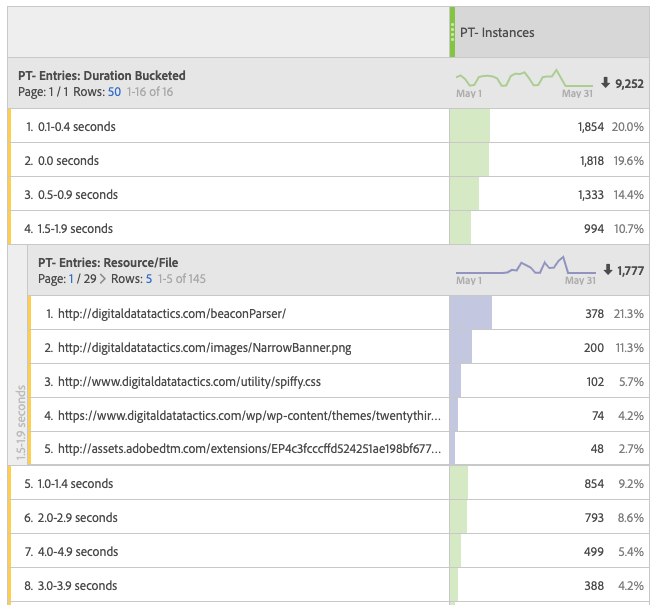
I recommend if you ARE capturing Performance Entries in a listVar, setting up 5 classifications on that listVar:
Resource/File
Starting Point
Duration
Duration- Bucketed (if desired)
Resource Type
Then set up a Classification Rule, using this regex string as the basis:
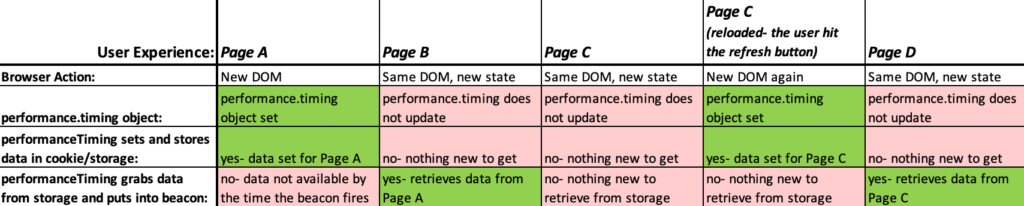
Unfortunately, this plugin will NOT be able to tell you how long a “virtual page” on a single page app (SPA) takes to load, because it relies on the performance.timing info, which is tied to a when an initial DOM loads. This isn’t to say you can’t deploy it on a Single Page App- you may still get some good data, but the data will be tied to when the overall app loads. Take this user journey for example, where the user navigates through Page C of a SPA, then refreshes the page:
As you can see, we’d only get performanceTiming entries twice- once on Page A and once on the refreshed Page C. Even without the “virtual pages”, it may still be worth tracking- especially since a SPA may have a lot of upfront loading on the initial DOM. But it’s not going to tell the full story about how much time the user is spending waiting for content to load.
You can still try to measure performance for state changes/”virtual pages” on a SPA, but you’ll need to work with your developers to figure out a good point to start measuring (is it when the user clicks on the link that takes them to the next page? Or when the URL change happens?) and at what point to stop measuring (is there a certain method or API call that brings in content? Do you having a “loading” icon you can piggy back on to listen to the end?). Make sure if you start going this route (which could be pretty resource intensive), you ask yourselves what you can DO with the data: if you find out that it takes an average 2.5 seconds to get from virtual page B to virtual page C, what would your next step be? Would developers be able to speed up that transition if the data showed them the current speed was problematic?
Use the Data
Finally, it’s important to make sure after you’ve implemented the plugin, you set aside some time to gather insights and make recommendations. I find that this plugin is one that is often used to just “check a box”- it’s nice to know you have it implemented in case anyone ever wants it, but once it is implemented, if often goes ignored. It is good to have in place sooner rather than later, because often, questions about page performance only come up after a change to the site, and you’ll want a solid baseline already in place. For instance, if you’re migrating from DTM to Launch, you might want to roll this plugin out in DTM well in advance of your migration so after the migration, you can see the effect the migration had on page performance. Consider setting a calendar event 2 weeks after any major site change to remind you to go and look at how it affected the user experience.
I’m honored to be included in the “Analytics Rock Stars 2019: Top Tips and Tricks” session at Adobe Summit this year in Vegas. I made my way onto the Rock Stars panel based on my entry for the inaugural Adobe Insider Tour stop in Atlanta, where I shared two tips:
Want to use Virtual Report Suites in place of Multi-suite tagging, but stuck on the need for different currency code settings? I’ve found a work-around that uses Incrementor Events so you can get local and report-suite-converted currency reports!
Copy and classify built-in Activity Map values to create automatic and friendly user navigation reports!
I don’t want to go into too much detail on this post- if you want more info, you’ll have to come to my session or ask me directly. Sign up for the session, then come introduce yourself!
Thus far in this series, we’ve discussed your options for a DTM-to-Launch Migration, and some potential areas you can improve upon your solution as part of a migration. As you can see from my previous posts, there are a lot of possible considerations for a DTM-to-Launch migration. So what might the actual process look like to get your company on Launch instead of DTM?
Figure Out How You’ll Roll Out
Does it make sense for your org to roll Launch out all at once to all of your properties? Or would you prefer to bite off one chunk at a time? (For instance, one client is currently updating their internal search single page app, so they’re going to roll out Launch there first, as a sort of guinea pig.) Keep in mind that even if you are only rolling out Launch to 3 pages first, ANY roll out is going to have to tackle some global logic- it may be that those first three pages are the hardest because you’ll need to tackle how to handle not just the requirements for those three pages, but also global items like authentication status or global marketing tags. If you do want to roll out all at once, you can keep using the same DTM embed code you always have so your developers don’t need to make changes to the pages, but that’s an all-or-nothing option (once you switch to Launch, Launch will “own” that embed code unless you choose to re-publish from DTM), and it only works in prod (dev/staging environments will still need the new embed codes).
Also, if you’re considering having DTM and Launch run alongside each other on the same page…. don’t even consider this an option. It won’t work. Both tools use the _satellite object and one WILL overwrite the other and/or get very confused by the presence of the other.
Validation
Keep in mind the effort to validate things- even if you are doing a “simple lift-and-shift”, you will still need to validate that Launch is doing all the things that DTM had been doing. Depending on how well-documented your current implementation is, and/or what QA efforts are currently in place, this may mean figuring out what it is that DTM is currently doing so you know whether Launch is matching it or not. This is a golden opportunity to set up some QA processes, if you haven’t already. If you don’t have a solid process already in place, you won’t be able to test every possible beacon for every possible user, but you should can set up a testing procedure in place for critical beacons on your most typical flows. Note, none of this is specific to DTM or Launch, but is a best practice regardless and will help with the DTM-to-Launch migration.
Establish key user flows and document each beacon in the flow’s expected variables
For your KPIs, in Adobe Analytics set up anomaly detection and/or alerts based on reasonable thresholds (alert me if revenue dips below $___ or visits climbs above ___)
This is all much easier if you used the migration as a chance to document your solution.
Audit What You’ve Got and What You Want
Unfortunately, Adobe does not provide a great way to document all of your current rules and data elements in DTM. Fortunately, there is a tool to help: Tagtician has a free chrome extension that can create a spreadsheet with a list of all your data elements, rules (including third party tags and what is deployed in the Adobe Analytics/Google Analytics section of each rule.) I cannot overstate how incredibly helpful this has been for every DTM migration project I’ve been on. Depending on how ambitious our migration plans are (on a scale of “lift-and-shift” to “burn it down and start fresh”), I’ve used this as a basis for a new solution design, so we know on each user action what variables are expected, where those variables are set, and where they pull their information from:
Then I take that to figure out how to deploy it through Launch (which may or may not look anything like how it was deployed in DTM): for instance, if pageName is always going to get it’s value from the same data element, I can set that in a global rule that fires on all page loads. Whereas my search variables can get their own rule, which will combine with the global rule on the search results page to create one analytics beacon with all the variables I need. Now that you can control load order and when analytics beacons fire in Launch, you may be able to really compartmentalize logic based on scope and get rid of redundancy in your implementation.
Decide On Your Publishing Flow
Launch has a new publishing flow- it’s no longer just staging vs production. You now have development (as many environments as you need), staging, and production; no changes automatically get built into a library unless you set it up to; you can use libraries to group together changes and move a group through the flow. If you only have one person in Launch at a time, and that one person tends to do most approvals and publishes, then the flow can definitely seem like “too much.” But for a lot of bigger organizations, this new flow is a game changer. Part of moving to Launch is figuring out how this flow should apply to your organization. For example, one client came up with something similar to this:
At the start of each sprint, they create a library with that sprint name, and link it to the main dev environment. Each member of their analytics team has their own permanent library in dev, linked to alternative dev environments (which aren’t referenced by any pages and are only really interacted with through the switcher plugin- basically a sandbox for them to build in, using the switcher plugin to see the effect of their efforts in dev). As changes are completed and pass their first round of validation, they get moved into the Sprint’s library, which at the end of the sprint moves into Staging, where it is validated by the developer/UX QA team before being approved and published. (This is just an example- there is no single “right way” to use this flow, it was designed to be flexible for a reason.) Be aware, once a library has “claimed” an environment (which is linked to an embed code), no other library can claim that environment, so if you want multiple libraries you will need multiple dev environments. Also, you can no longer use code in a developer console to switch between environments- currently, the only way I know to switch between environments is to use the Search Discovery switcher chrome extension or to use something like Charles Proxy Map Remote.
The Migration Project Plan
A DTM-to-Launch migration can become quite the involved project. For the simplest of migrations, it still may be 4-6 weeks to migrate within the tools, do any necessary validation, and publish your changes. It may only need to be one or two main analytics/TMS folks and/or a QA person working on it. Or, it may be a 9 month project that involves devs, QA/UAT, data architects, analysts… don’t underestimate the resource cost of the migration (though at the same time, don’t undervalue the long-term resource savings if you take the time to get it right as part of the migration and (re)build a scalable, maintainable, well-documented solution.) For instance, below is an example of how a Launch migration could go. This example does not include any changes to the data layer, but does include a substantial attempt to re-deploy analytics rather than merely shift the existing implementation with all the same rules and data elements.
Next Steps and Resources
As you can see, even a simple lift-and-switch to Launch can be a bit involved, and folks can feel daunted by all the considerations, options, and things to be aware of. I’ve tried to be as thorough and comprehensive as possible in this series, and I hope I hit the right level of detail to give practical guidance on how to tackle a DTM-to-Launch migration. There is a great community out there for folks who need DTM/Launch support- check out the following resources:
#measure Slack is a free Slack community full of practitioners, consultants, and Adobe product/community resources; I spend a lot of time in the #adobe-analytics and #adobe-launch channels
The Launch Developers Slack Forum is particularly helpful for those wanting to use the APIs, build extensions, or get technical best practices
And of course, the 33 Sticks blog, as well as my own blog, have lots of Launch content.
Hopefully this series helped, but feel free to reach out if you have questions or if you’d like to engage with us to make sure you get off on the right foot as you move to Launch.
Aside from all of the things that Launch handles better than DTM did (which I discussed a bit in my previous post in the series), a move to Launch provides an opportunity to clean up and optimize your implementation (to the point that even if you weren’t moving to Launch, you could still do this clean up within DTM). You can save yourself from headaches and regret down the line if you take the time now to define some standards, adopt some best practices, or apply some “lessons learned” from your DTM implementation.
Redo Your Property Structure
Many companies set up their DTM properties based on a certain understanding of how properties should be used, and realized a bit too late that a different set up might work better. A previous post of mine on this topic is still applicable in Launch: your properties should not be based on Report Suites or domains, but rather, on the three following questions:
How similar are the implementations between your sites (do they use the same data layer, for instance? Would the rules be triggered by the same conditions?)
How similar are the publication timelines (if you publish a change for Site A, would it also apply to Site B at that time?)
Will the DTM/Launch implementation be maintained/updated by the same folks? (Properties are a good way to control user access.)
Keep in mind Launch has an API for configuration, so if you have 15 properties and want to make a change to all of them at once, you now can (though that API is not yet super documented/supported, so it’s a bit of a wild west so far). In general, I’ve seen folks using Launch as an opportunity to move to fewer properties.
Define Standards and Best Practices
Now is a great time to take lessons learned from DTM and define the standards your company will follow within Launch. Some things are arbitrary- it doesn’t really matter if I name the rule “Product Details Page View” or “page: product details”, but if we are consistent from the start, it can save us a lot of head ache and cleanup down the road.
Tags With the Same Condition(s)/Scope Should Share the Same Rule
To keep your library light, and your implementation scalable and maintainable, I highly recommend basing your rules on their scope/condition, rather than the tags they contain. For instance, a single rule named “Checkout: Order Confirmation” is better than 10 different rules that fire on Order Confirmation- “Doubleclick Order Confirmation” and “Google Conversion Tags”, etc. I’ve written previously about why this matters– it can have a surprising affect on page performance (not to mention it cane make your TMS impossible to navigate/maintain), and that still applies in Launch.
Delete redundant and unused stuff
Run an audit of your DTM property. Do you have redundant or unused Data Elements? Empty (or permanently commented-out) rules or Third Party Tags? Inactive rules or data elements that aren’t likely to ever be used again? Often folks are afraid to delete things within DTM, but this is a great chance to delete anything that isn’t still useful.
Institute a Naming Schema
This is your chance to have a nice, clean naming standard in your TMS. Consider all the following things you can name in Launch:
Data Elements: I try to keep to the same [category]:[details], though since Launch doesn’t show the DE type from the DE list like DTM does, I also like to include the type: “search: term: QP” (QP for Query Parameter) or “checkout: order total:DL” (DL for Data Layer). I also prefer keeping everything for Data Elements lowercase so I don’t have to worry/remember how I capitalized things.
Rules: In DTM I liked to do something like “[category]:[scope/condition]” (eg “Search: Results”, “Catalog: Product Details”, “Checkout: Cart View”.) In Launch, because DCRs, EBRs and PLRs now share the same interface, I like to take it a step further and include the rule type at the front: “Page: Search: Results” or “Click: Search: Filter”. If you have a lot of rules potentially firing into the same beacon, then I’d also include info about the order (eg, “Page: Global: All Pages #100” and “Page: Home #25” so you know that the #100 one would fire AFTER the #25 one on the home page.) I’ve also found it helpful to call out the rules which actually fire my analytics BEACON as opposed to rules that run higher in the order and only set variables (eg: “Page: Global: All Pages (s.t) #100”). Then within Rules, there are more naming considerations than there had been in DTM:
Events: Should be descriptive, and it may be worth including the load order (so “Page Top- #100” or “Direct Call: Add to Cart #50” might do the trick.)
Conditions/Exceptions: Conditions and Exceptions particularly should have some sort of custom naming (instead of a condition “Core – Value Comparison”, I might name it “pageName DE=’search results’”).
Actions: I’ve been leaving some with the default (eg, “Adobe Analytics – Set Variables”, though depending on how complicated my implementation is, I might want to change that to “Analytics- Content Identification variables”). Any Core/Code actions should have a descriptive name (“Yahoo pixel- expires 12/19/19” or similar.)
Fix Up Your Data Layer
This is perhaps a very ambitious task for most migrations, but if you’re already taking the effort to audit your DTM implementation, now might be a good time to also look at your data layer- do you have data layer objects that aren’t being used in DTM at all currently? (Be aware, of course, that data layers don’t always exist solely for a TMS’s sake- make sure no one else is using it either). Before you go creating a bunch of data elements, is there something you wish your data layer had that it currently doesn’t? Or do you wish it were structured differently? Now might be a good chance to optimize it! Especially if you are rolling Launch out to one part of your site at a time, you may be able to work with devs to break up a Data Layer rollout into reasonable chunks. You may be surprised by how many devs are on board with fixing up the data layer, particularly if your current on is messy/confusing.
Move Third Party Tags to Asynchronous JS
This is one of the biggest areas for improvement I’ve seen amongst my current and past clients- they’ve potentially been using DTM for years and haven’t always taken advantage of DTM’s ability to improve page performance by moving third-party tags to asynchronous javascript.All tag managements systems have inherent weight- you are adding a JS library to your site. If you don’t mitigate this weight by using the TMS to optimize your tags, your TMS may be having a net-negative affect on your site- a substantial one, in many cases. I’ve written previously about the approach I would recommend for third-party tags, but to emphasize the importance of this: I have seen the overall page load time improve by 15-30% by simply moving tags within DTM to async. Unless the vendor’s code affects the user experience (chat, survey or optimization tools, for instance), there is no reason for most tags to be anything other than non-sequential JS.
In Launch, you can take it a step further, and use extensions to further optimize your tags. For instance, if you use Facebook or Doubleclick, there are extensions in place that you can use to move those tags entirely out of custom code blocks. Or, if you are deploying a simple pixel tag and the vendor does not have an extension, you can use 33 Sticks’ Pixel Loader extension to easily change it from an html tag to asynchronous javascript.
Document Everything!
Moving to Launch also provides the ability to get solid, current documentation on your solution. Aside from auditing your solution (I’ll take about that in a moment) so you know which rules are setting what or what is expected in the Data Layer on certain pages, I also recommend using this fresh start as a change to document and enforce your standards and best practices for TMS deployment. For instance, I’ve helped clients create a confluence document that anyone at thier company who might be within Launch can access, detailing:
Naming Strategy (see notes above)
Third Party Tag deployment standards (which tags are “approved” by your org for use- as in, “do not use one TMS to deploy another TMS like GTM, not unless you hate your site loading quickly”); deploying tags as asynchronous JS- see note above…)
I also recommend as part of the auditing/documentation process getting a list of all your third party tags, documenting who at your org “owns” that tag, and setting “expiration/renewal” dates (“Jan Smith owns this floodlight tag, deployed 8-5-18; on 9-5-18 we will contact her to see if the tag is still valid or can be deleted”).
Best Practices (don’t check “apply handler directly to element” without good reason, try to limit the number of Data Elements used in “Data Element Change” rule triggers, etc.)
Publication Flow (how is your org using libraries and environments? Who approves and who publishes? Will publishing happen with a specific cadence, like every other Wednesday? What is your QA/validation process? Do you want to implement an “all changes must be reviewed by someone other than the person who made the change” rule?)
I know this level of documentation can be daunting and seem like overkill, but your future staff/employees will thank you for it, even if it’s informal and/or a work-in-progress.
Change Your Deployment Method (Adobe-Managed vs Self-Hosted)
DTM had a few deployment options:
An Adobe/Akamai-hosted library (ie, your embed code starts with “//assets.adobedtm.com”)
An FTP self-hosted library (DTM would push changes through FTP to a location on your own servers)
A downloaded self-hosting option (you would manually download after changes and put onto your servers).
Now may be an opportunity to change this- if you’ve been doing the manual download option because of security concerns, now that the publishing flow in Launch is more flexible/powerful, might you be able to simplify by moving to another option?
Technically, all three of these options also exist in Launch, though the approach is slightly different. I’ve documented in a separate post how you can achieve each of the three methods in Launch- especially the download method, which may not be intuitive for users who had used the download option in DTM.
Update Your visitorID/appMeasurement Libraries
A TMS upgrade is also a good chance to update to the most recent stable Adobe libraries (for instance, as of this moment, the most current Analytics library is 2.10). Unless you are doing something very custom/weird in your libraries (or are stuck in the dark ages on H code), updating should be a relatively easy process, and offers benefits like improved page performance.
It may also make sense to examine your doPlugins function (if you are still using it): do you have functionality you can move out of doPlugins (eg, do you still really need getQueryParam when you can just use the DTM/Launch interface?) (Also, word on the street is that some folks at Adobe may be releasing an extension to handle many of the common plugins, so that may provide some extra room for enhancement.)
Update cross-Adobe Tool integrations
If you’re not yet on the VisitorID service, you really should be. Then once you are on that, now would be a good time to update your implementation for integrating analytics with other Adobe tools:
If you use Target, are you on at.js (and is it current)? Do you have Analytics 4 Target (A4T) set up?
If you use Audience Manager, have you transitioned to a server-side integration? Are you currently deploying your DIL at the bottom of your Analytics code in DTM, and might you be able to transition that to use the AAM extension?
What’s Next
By now, you should have a sense of what type of migration path you’re going to take, and what aspects of your solution you may want to change or improve upon. The next post in the series will walk you through the actual process and provide a rough framework for a project plan.
Adobe’s Launch is really building momentum (they just announced the plan to sunset DTM– editing abilities end December 31st, 2019 July 1st, 2020; read-only access dies June 2020 December 31st, 2020 (dates updated to reflect Adobe’s change)), and in the past few months, it feels like almost every day, I get asked “what does a launch migration look like?”
And I’m afraid I have a very unhelpful answer: it totally depends.
We’ve had visibility into about a dozen migrations now, and each one has been a completely unique case. But I figured I can at least defend my answer of “it depends” by clarifying what it depends on, what the options are, and what considerations should you make.
Disclaimer: Info in this series is accurate as of, October 29, 2018. We will try to update it as it makes sense to do so, but things can change quickly in the world of TMSes and iterative product releases.
You’ve Got Options
As far as we see it, if you’re considering a move from Adobe DTM to Launch, you have a few options:
Use the DTM-to-Launch Migration tool (SEE: Adobe’s documentation), essentially just doing a lift-and-shift of your current DTM implementation.
Use the DTM-to-Launch migration tool, but do a fair amount of clean up before/after.
Use a tool like Tagtician to audit what you currently have, decide what you want to carry over, and set it up “fresh” in Launch (have Launch accomplish the same thing as DTM, but perhaps accomplish it in different ways).
Use this as a chance to rebuild your solution from the ground up.
Most folks we’ve talked to or worked with are looking at somewhere in that 2-3 range. In most cases, we’d strongly discourage going with option #1, that straight-up lift-and-shift. I PROMISE there is some room for review and improvement in your DTM implementation.
First, not everything in DTM will work in Launch. Our friends at Search Discovery have a great tool for detecting places within DTM that you may be using code that will no longer work (goodbye, _satellite.getQueryParam). (NOTE: this detects places in your DTM library you are using those “forbidden” functions- if you are using something like _satellite.getQueryParam in your own javascript outside of DTM, it will not detect it.)
Technically, aside from the things that that tool will flag, everything that worked in DTM should work in Launch (actually, there are a few major differences you should be aware of). BUT, many of the workarounds you may have resorted to in DTM are no longer needed, so you can definitely optimize things. There are some broader differences between DTM and Launch that open the door for some changes to your implementation that could be really valuable.
Consider the following questions:
Are you currently using DTM for Single Page Apps? (if so, you’ve almost certainly had to use some workarounds that are no longer needed)
Do you have any repeated global logic (all of your DCRs or EBRs might be setting “eVar5=%auth status%” because you didn’t have a way to get that eVar included on all beacons otherwise)
Do you use Direct Call Rules heavily?
Do you have s.clearVars running in odd places?
Are a large portion of your Analytics variables being set in custom code blocks instead of in the interface?
Do you fire any Direct Call Rules from within your DTM implementation (eg, DCRs calling other DCRs to get around timing/scope issues?)
Are you currently firing Adobe Analytics beacons from outside of the Analytics Tool (eg, are you using a third party tag box to fire s.t or s.tl because of timing issues?)
If you answered yes to any of the above questions (and perhaps even if not), then you absolutely should be considering moving to Launch ASAP, for all the reasons discussed on these other blog posts:
Launch’s publication flow is much more flexible, making it easier to publish only what you want to publish to either Dev (as many environments as you want), Staging or Production
Even if you don’t have a Single Page App, or you are currently using any weird work-arounds to get DTM to work for you, you should use a migration as an opportunity to improve your implementation (which leads us to post 2 in the series: A Golden Opportunity).
There’s a lot of talk about how Adobe Launch is backwards-compatible- that, aside from a few _satellite methods that may not still work (that were probably not supported to begin with), anything you had in DTM should still work in Launch. But, well, not EVERYTHING in DTM is still going to work in Launch, and some things in Launch may catch you off guard. Here are some things you should be aware of:
Far fewer things happen automatically. For instance, Adobe Analytics no longer automatically fires a beacon on page load (which I view as a wonderful thing, but you still need to be aware of it). You need to set it up (and things like loading Target or firing Mboxes) in a rule.
The following _satellite methods (among others, but these are the most common) are no longer supported (or, in some cases, may never have been supported but now simply won’t work).
_satellite.notify (this still technically works, but you should migrate to _satellite.logger)
_satellite.URI
_satellite.cleanText
_satellite.setCookie (which is now _satellite.cookie.set) and _satellite.readCookie (which is now _satellite.cookie.get)
There is some interface functionality in DTM that is not yet in Launch:
There is no “notes” functionality currently (though I hear that is coming soon)
It’s not easy to do a revision comparison (diff compare) currently (though again, I hear that is in the works).
Launch still has console debugging, but it no longer alerts you to what “SATELLITE DETECTED” (which I used a lot to troubleshooting bubbling issues)- it merely tells you what rules are firing, etc.
Some tools like Tagtician or Disruptive Advertising’s DTM Debugger are not yet fully Launch-compatible. (Tagtician supports Launch but is working on improving how it handles it; I don’t know if the DTM Debugger has any plans to become Launch-compatible).
The Adobe Analytics extension does not support multiple Adobe instances, nor can you have multiple Adobe Analytics extensions installed. (Multi-suite tagging is still ok).
The Google Analytics extension does not support multiple GA instances.
Some things have been renamed in a way that may throw you off- for instance, you can still easily have a Rule condition be based on a Data Element value- it’s just named “Value Comparison” now.
While Launch gives you much more control over the order things happen in, be aware that while actions within a rule will START in the specified sequence, they may not COMPLETE in sequence: Action 1 will start, then Action 2 will start whether Action 1 is finished or not. This is particularly significant if the actions are just code (for instance, I had my first action try to pull information from an API, and my second action then use that info to fire a pixel… but the pixel kept firing before the API had done its thing). I hear that users may eventually get more control over this, but for now this is how it is.
Adapters can be confusing (fortunately Jimalytics clears it up nicely on his blog). These days, Adobe automatically creates a “Managed by Adobe” adapter, and that single adapter should work for multiple environments.
None of these are necessarily a reason to not upgrade- especially since Adobe now has a plan for sunsetting DTM. But hopefully you won’t be caught unaware by any of these items. Has anything else surprised you about Launch? Let us know!
An Adobe/Akamai-hosted library (ie, your embed code starts with “//assets.adobedtm.com”)
An FTP self-hosted library (DTM would push changes through FTP to a location on your own servers)
A downloaded self-hosting option (you would manually download after changes and put onto your servers).
Technically, all three of these options also exist in Launch, though the approach is slightly different. Since I ended up having to get some clarification from Adobe on how to use Launch to copy these methods, I figured I’d document my findings here . When creating an adapter, you have the option of Managed by Adobe or SFTP:
If you select SFTP, it’s slightly different from in DTM, but the effect is the same.
How To Use the “Download” Method
If you want to go the download route, you still can, but it’s a bit hidden, so I’ll walk through it. Choose “Managed by Adobe” here, but then when setting up the corresponding environment, choose “Create Archive” and specify where the file will live on your servers (this is important because each file within the library package needs to know how to reference other files within the library package):
(You can even encrypt the file if you’d like extra security, so that a password would be required to open/view the archive).
Then, once you’ve built the library (and you MUST build it AFTER you’ve set it to “create archive”, or there won’t be anything to download), when viewing your environments click on the “install” icon:
This should give you a popup where you have the ability to “Download Latest Archive”:
This should download a .zip to your browser, the contents of which you can now put on your server. Be aware that the folder(s) within this zip may change names between builds (like the “BL1f0491fb5eb14ad3b60996dd31aedaa6” folder in my image below, in a previous build had been “BL92309a949e564f269ce6719b1136910f”), so if you are trying to merely paste one build over another, you may want to clean out the old subfolders afterwards to keep the overall folder clean.
Hopefully this helps fill some of the documentation gaps out there. Please let me know if you have any additional insight or questions!
Adobe’s Dynamic Tag Manager has always given developers a chance to define exactly when a rule was called, by firing _satellite.track("insert rule name here"). This is called a Direct Call Rule (or DCR). They didn’t always get a ton of product love- after all, Event Based Rules don’t require work from developers and have so many more options- but many DTM users used them heavily because of the control they provided and how incredibly straightforward they were.
From my view, they historically had a few major downsides:
Multiple DCRs couldn’t “stack” to form a single Adobe Analytics beacon, meaning you couldn’t have one DCR set your global variables and another set more user-action-specific variables.
You couldn’t apply additional conditions (e.g. “don’t fire on the page with this URL”)
There was no good way to clear out your variables so they wouldn’t persist from beacon to beacon
You couldn’t pass additional information specifically scoped for Direct Call Rule. For example, if you fired _satellite.track(“add to cart”), you had to make sure your overall data layer/data elements were already set up properly to show WHICH product was added to cart.
I’ve talked about how happy I am that Launch solved the first three points (here and here) but I’ve finally had a reason to try out how Launch handles #4.
_satellite.track("add to cart",{name:"wug",price:"12.99",color:"red"})
Then, when you set up a rule that fires off that direct call:
You can access the information on those parameters like you would access a data element, by referencing %event.detail.yourObjectHere%:
Or, if needed, in your custom code for that rule by just accessing event.detail:
You could even have a multi-leveled object:
_satellite.track("add to cart",{product:{name:"wug",price:"12.99",color:"red"},location:"cart recommendations"})
In which case you could reference %event.detail.product.name% or %event.detail.location%.
That’s all there is to it! Go ahead, fire this off in your console, and see our rule at work:
_satellite.track("add to cart",{name:"wug",price:"12.99",color:"red"})
I’ve seen this work in DTM recently, too, though I’m under the impression that may not be fully supported, perhaps. Either way, this great enhancement can simplify data layers and Launch implementations and removes the need for a lot of previous workarounds.
There is so much documentation out there for Adobe Analytics and GDPR, it’s hard to see how it all fits together (though I do feel like Adobe’s documentation on the GDPR workflow is a good place to start). Note, I am NOT claiming to be an expert on this- I’ll defer to Adobe staff for their expertise. And I am NOT offering advice on what/how to regulate- I’ll defer to your legal/privacy team for that. But since I just had to muddle through all this, and learned a lot in the process, I figured I’d share my learnings and hopefully help others who are also muddling through.
I’ve found that in general, when folks are talking about changes in Adobe Analytics to account for GDPR, they’re talking about one of three things:
Obfuscating/removing User IP addresses
Adobe Data Retention Settings
Client Opt-out
Obfuscating/Removing IP Addresses
This is pretty straightforward, though the documentation is a bit tricky to find. This is simply a setting you can set in the Admin Console of Adobe Analytics within General Account Settings for each Report Suite:
Replace the last octet of IP address with 0 is basically like taking the street number off of my house’s address- you may still be able to know my general location, but you no longer have the specifics. This change applies BEFORE data is processed, meaning it WILL affect Adobe’s ability to do Bot/IP Filtering, might affect VISTA rules, and will make it so Adobe’s Geo-segmentation will have less info to work with and will therefore be at least a little less accurate.
IP Obfuscation affects what analysts/admins can view of the IP address, like in Data Warehouse. You can choose to leave the IP address as-is, to obfuscate it so it becomes a unique string that can’t be used to identify the user, or to replace it with “x.x.x.x” (which is the default option for EMEA suites gong forward). The obfuscation or deletion happens further along in data processing, after VISTA rules and Bot/IP filtering.
Adobe Retention Settings
After May 25, 2018, Adobe may start deleting data older than 25 months, unless you specifically work with your Adobe Account reps to extend this to up to 37 months (at a cost). Unlike Google Analytics (which will keep standard reports but just delete user/event data), Adobe truly is just deleting all data older than your retention window. When thinking about this, I’d encourage you to consider:
the rareness of a user who hasn’t reset their cookies/changed devices/changed browsers in over 2 years
if your site and/or implementation hasn’t significantly changed in 2+ years, then we may have bigger issues than data retention
Basically, if you’re heavily using data that is over two years old, I’m fairly certain that you’re already not looking at data that could be compared as apples-to-apples with your current site/implementation.
You can view your current data retention by going to the Data Governance interface mentioned later in this post (note, my Report Suites say anywhere from 37 months to 121 months, even though I have definitely not worked to extend it beyond 25 months- I suspect that since I have not explicitly extended it, I can’t count on it staying this way):
Client Opt-Out
This is definitely the most involved piece of GDPR compliance. Again, Adobe’s documentation on the GDRP Workflow has some good information, but here is my take on what you need to do (assuming you are already on the Experience Cloud):
Label what data needs to be “governed”
Here, on a per-Report-Suite basis, I can go through all my dimensions and metrics and flag what things should be affected by data governance. Many of my dimensions and metrics don’t NEED to be governed- for instance, browser type can probably just be left alone (Disclaimer: seriously, talk to your legal team about what to govern). Other things, like geo-location, Adobe may have automatically already applied appropriate labels to, which you just need to review/confirm:
But my own organization’s policies may dictate that I go even more stringent and also label things like US States, which Adobe didn’t auto-apply a label to. The more likely scenario is that I need to pop open the subtle drop-down menu that says “Standard Dimensions” and go to my custom Events and Dimensions so I can find my eVar that captures User ID and label it so Adobe knows how to govern it:
The labels are, unfortunately, not super straight-forward, but basically, these are your options for each dimension/metric:
Adobe will use these labels to decide what to do when it receives a request from you about a user access/deletion.
Set Up Your Privacy Portal for Capturing Adobe ID Requests
Before Adobe can “govern” anything, you need to give users a way of opting out of tracking. This means setting up a Privacy Portal on your site, and using it as a means of collecting information about who is requesting to access their data or opt out. Adobe has provided some tools to help find out about the WHO and WHAT, but then it’s up to your Data Regulator (whoever in your org is assigned to do this stuff) to pass that information along to Adobe.
1. The User Visits the Privacy Portal
adobePrivacy.js (or the Adobe Experience Cloud Privacy Launch extension) can put all the tracking identifiers we have for the current user into a JSON object.
Our user might request to merely view what data is being kept on him, in which case, he’ll have to wait- adobePrivacy.js can show us his IDs, but not much more than that. But I could at least show him the identifiers if I want. He may request to delete all past data (and/or get a copy of what was deleted). For that, I need to take that JSON object from adobePrivacy.js and pass it along to whatever mechanisms my Org has in place to organize data governance requests with with Adobe GDPR API.
For example-driven learners like me, I have an extremely unattractive example page showing how to use adobePrivacy.js.
This is what the “retrieve” response might look like:
[
 {
  "company": "adobe",
  "namespace": "visitorId",
  "type": "analytics",
  "name": "s_fid",
  "description": "Fallback Visitor ID",
  "value": "64F04470FAKE04E9-1DADD8FAKE65B7C2"
 },
 {
  "company": "adobe",
  "namespace": "CORE",
  "namespaceId": 0,
  "type": "standard",
  "name": "AAM UUID",
  "description": "Adobe Audience Manager UUID",
  "value": "610212449467061254000504ALSOFAKE"
 },
 {
  "company": "adobe",
  "namespace": "ECID",
  "namespaceId": 4,
  "type": "standard",
  "name": "Experience Cloud ID",
  "description": "This is the ID generated by Visitor and set in 1st party cookie.",
  "value": "6080944537973STILLFAKE359908301249"
 }
]
2. I Submit the Request Through the GDPR API/API Portal
I can use either the Privacy UI Portal (which I can get to from my Adobe Experience Cloud Admin Console) or the GDPR API (after I’ve set up an adobe.io integration- see Appendix on this post).
Here, I can take the JSON object I got from my portal (shown to the right in blue), batch it up with other user’s info (if desired), and let Adobe know who has made an access/delete request. Requests take 1-2 weeks. For access requests, you get a CSV that returns the status of your requests.
I happen to use Postman for my request, which is a handy UI for API requests. This is what my request might look like:
POST API request to https://platform.adobe.io/data/privacy/gdpr/ Headers:
Adobe sees a request to access/delete the data for ECID 64F04470FAKE04E9-1DADD8FAKE65B7C2 and sees what data we have for that user. Let’s look at three dimensions and their settings for an example:
If we have data for that user in the Domains dimension, it will see that that data has a data governance label of “ACC-PERSON” which, according to the tooltip means it “will never be returned for a GDPR access request, unless an ID-PERSON label is applied on a variable in this report suite”. I am keeping tracking of an ID for this user in one of my eVars, so the user’s access request will show what Adobe knows their domain to be. Entry Page doesn’t have any data governance labels applied, so the Entry Page data for this user is left alone. Entry Page Original has both a “DEL-DEVICE” and a “DEL-PERSON” label on it, meaning Entry Page Original data for this user will be anonymized.
Next Steps
I’ve submitted a few user access/deletion requests so I can see how it affects the data and what the access report looks like, so I’ll have a follow up post in a few weeks with my findings.
Appendix I: Passing along my own Identifications for Users
If I have an eVar (or prop) that I use to identify users (for example, capturing a hashed user ID), then in my data governance labels, I would check the “ID-PERSON” radio button.
Then I need to specify which NAMESPACE I’m going to keep that value in for my API requests. Basically, my API JSON objects already have the IDs that Adobe sets and knows about:
{
 "company": "adobe",
 "namespace": "ECID",
 "namespaceId": 0,
 "type": "standard",
 "name": "Experience Cloud ID",
 "description": "This is the ID generated by Visitor and set in 1st party cookie.",
 "value": "6080944537973STILLFAKE359908301249"
}
So now in my API requests I can add in the IDs that I have for that user:
Then Adobe’s Data Governance tools can make the connection that IDs sent to the “myuserid” namespace in my API requests correspond to the IDs in my custom dimension that I’m labelling as “ID-PERSON”.
Appendix II: Setting Yourself Up for the API
So, that all seems simple enough, right (ha!)? For me, one of the trickier parts of getting this all set up was setting myself up to use the GDPR API through an Adobe.io integration. I had an advantage because I’ve used a similar integration for Adobe Launch Extensions, but even then for the GDPR API I had to have at least one support ticket (first through Adobe Client Care, then through the adobe.io support team- turns out the ever-evolving documentation didn’t have the right endpoint for me to use yet, but that has since been fixed.)
You will need to generate a public and private key. I find the easiest way to do this is to open up a Terminal (aka Command Prompt), navigate to a sensible folder (eg, “cd analytics/gdpr”) and type in the following:
It will prompt you to fill in some information about yourself and your org- complete the prompts, and you should now have two files in your folder: “certificate_pub.crt” and “private.key”. You’ll use these in a moment.
If you don’t already have one, you’ll need to create an adobe.io account (with the same email you use for the experience cloud). Sign in to the adobe.io console.
Create a new integration. On the second screen, select “Access an API”. On the third screen, select the service “GDPR API”.
On the final screen, give it a name (like “GDPR API for Acme, Inc”) and description. Take the “certificate_pub.crt” you created in step 1 and upload it to the “Public keys certificates” field. Click “Create Integration” then “Continue to Integration Details”.
On the Integration Details screen, note your Organization ID (eg “DCF7791959688FAKEID495D3E@AdobeOrg”)- this should match your Experience Cloud Org ID for your company. You’ll need this for the “x-gw-ims-org-id” field in your API Request Headers.
Also on the Integration Details Screen, note your API Key (Client ID) (eg, “765f21b62606FAKEapiKEYb3e656048a910e”). You’ll need this for the “x-api-key” field in your API Request Headers.
On the Integration Details screen, click the “JWT” tab. It will have generated a JWT that you can basically ignore. Open the “private.key” file you created in step 1 in a text editor, copy the contents (including the “——BEGIN PRIVATE KEY——“ and “——END PRIVATE KEY——“ lines) and paste into the “Paste Private Key” field.
Copy the “Sample CURL Command” value and paste it into your Terminal/Command Prompt and hit enter. This should return something like this:
The portion in purple is your API Authorization Token for the next 24 hours. After that, you need to repeat steps 7 and 8 to generate a new temporary token.